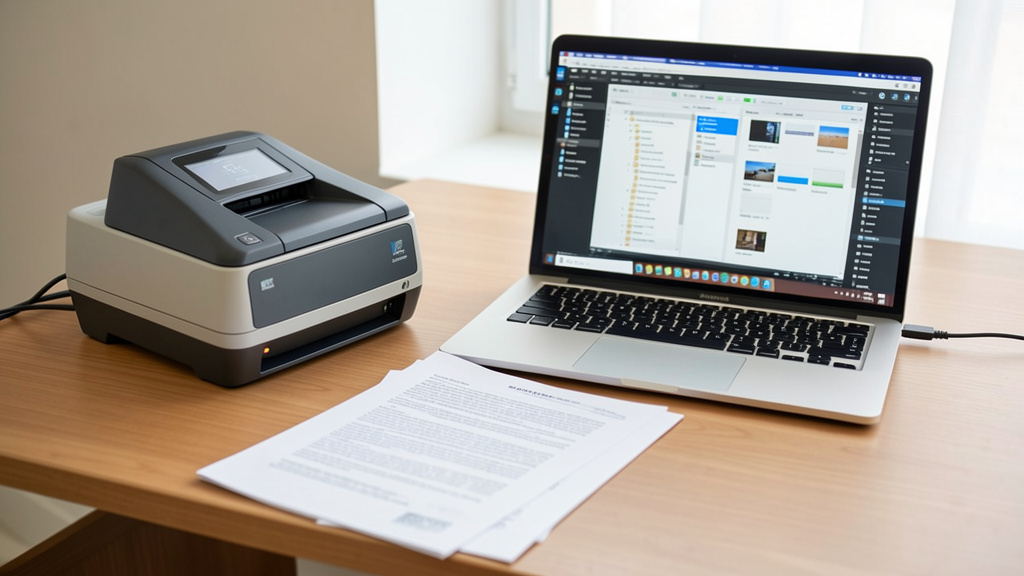
Stop choosing between digital and physical. Build a resilient, low-friction paper management system that adapts to your life—and actually sticks.
For decades, the promise of a “paperless office” has loomed just beyond our reach, yet paper continues to flow into our homes and workplaces. Bills, school forms, legal documents, sentimental keepsakes—the reality is that paper isn’t disappearing. The true challenge isn’t eliminating paper; it’s designing a system that handles both physical and digital documents with equal grace. This comprehensive guide moves beyond fragmented advice to present a unified framework that reduces overwhelm, saves time, and ensures nothing falls through the cracks. Whether you’re navigating a backlog of unsorted mail or refining an existing system, you’ll discover practical, adaptable strategies grounded in observable patterns from diverse households and workspaces worldwide.
Introduction
Walk into any home office, kitchen counter, or entryway table, and you’re likely to encounter the same scene: a growing pile of papers waiting for attention. This isn’t a personal failing—it’s a systemic one. Traditional advice often pushes an all-or-nothing approach: “Go completely digital!” or “Invest in a massive filing cabinet!” Yet these extremes ignore the nuanced reality of modern life. Some documents benefit from physical presence (a child’s crayon drawing, a notarized deed requiring original signatures), while others thrive digitally (monthly statements, reference guides). The friction arises when we lack a clear protocol for deciding which path each document should take.
Analysis of effective organization patterns across varied living situations reveals a consistent insight: sustainable paper management centers on intentional decision points that minimize daily cognitive load. The most resilient systems share three traits: they are friction-aware (designed around actual human behavior, not idealized workflows), adaptable (flexible enough for life’s unpredictability), and bridge-focused (seamlessly connecting physical and digital realms without forcing false choices). This guide synthesizes these principles into an actionable framework you can implement immediately, regardless of your current starting point. You don’t need expensive gadgets or hours of free time. You need clarity. You need a system that acknowledges paper’s persistent role while giving you command over its flow.
The Bridge Framework: Three Pillars for Lifelong Paper Management
At the heart of this system lies the Bridge Framework—a mental model designed to eliminate paper management anxiety by creating clear pathways for every document. Imagine a bridge with three essential supports: Triage (immediate decision-making), Transform (converting documents to their optimal format), and Maintain (ongoing habits that prevent backlog). Unlike rigid “paperless” dogma, this framework acknowledges that some paper should remain physical, some should become digital, and some should be discarded—and provides unambiguous criteria for each choice. The goal isn’t perfection; it’s progress toward a system that feels effortless and sustainable.
This framework is designed to adapt across contexts: home offices managing freelance contracts, families navigating school paperwork and medical records, small businesses handling client documentation, and individuals organizing decades of accumulated files. Its strength lies in scalability—you can implement core elements in a single afternoon for immediate relief, then deepen your practice gradually. Let’s explore each pillar in detail, with concrete steps, realistic examples, and solutions for common friction points.
Pillar 1: Triage – The 60-Second Decision Protocol
Triage is your frontline defense against paper accumulation. This isn’t deep organization; it’s rapid, confident decision-making the moment paper enters your space. Think of an emergency room triage nurse: they assess urgency, assign a clear path, and prevent chaos. Your paper triage station—whether a designated tray on your desk, a basket by the front door, or a virtual inbox for scanned items—serves the same purpose. The entire process should take no more than 60 seconds per document. Here’s exactly how to execute it.
Step 1: Create Your Triage Zone
Select a single, consistent location for incoming paper. This could be:
– A shallow tray (max 1″ deep) on your desk
– A wall-mounted sorter with 3–5 slots
– A dedicated spot on your kitchen counter (if that’s where mail lands)
Critical rule: This zone must be visible and accessible, but not so large that it encourages accumulation. A deep bin invites “I’ll deal with it later” thinking. The shallow tray creates gentle pressure to process items daily. For digital incoming (scanned documents, email attachments), create a “To Process” folder in your document management app or cloud storage. Never let digital files languish in downloads or email inboxes. Place this folder prominently in your sidebar—out of sight truly is out of mind.
Step 2: The Four-Path Decision Tree
Hold each document and ask these questions in order. Answering “yes” to any question moves the document to that path. Spend no more than 15 seconds per question.
- Action Required? (Does this need a response, signature, payment, or scheduling within the next 30 days?)
- If yes: Place in your “Action” tray or digital folder. Attach a sticky note with the deadline if physical. For digital, use your app’s reminder feature.
- Why it works: Separating actionable items prevents urgent tasks from being buried under non-urgent paper.
- Common mistake: Labeling everything as “actionable.” Be discerning. A catalog you might browse later? Not actionable. A bill due next week? Actionable.
-
Example: A school permission slip due Friday is signed immediately (if possible) and placed in the “Action” tray with a note: “Return to backpack tomorrow.” A credit card offer? Straight to shred.
-
Reference or Archive? (Will you need to retrieve this information again? Is it legally or financially significant?)
- If yes: Move to “Transform” pile (next pillar). Do not file it yet!
- Critical nuance: Reference documents are frequently accessed (user manuals, insurance policies). Archive documents are rarely accessed but must be retained (tax records, property deeds). Both go to Transform, but their final destination differs.
-
Counter-example: That restaurant menu you might order from again? Not reference. Take a photo with your phone and discard the paper. True reference items solve recurring problems.
-
Sentimental or Display? (Does this hold emotional value or belong on a wall?)
- If yes: Place in a dedicated “Sentimental” box (physical) or folder (digital). Limit the box size—a shoebox for physical items prevents overaccumulation. For display items (children’s art, certificates), decide immediately: frame it, photograph it, or schedule digitization.
- Why this step is crucial: Sentimental paper is a common source of guilt-driven accumulation. Giving it a designated (and limited) home reduces anxiety.
-
Budget alternative: Use a clear plastic bin labeled “Memory Lane” with a strict “one bin only” rule. When full, review before adding more.
-
Discard or Shred? (Does this contain no actionable, reference, archival, or sentimental value?)
- If yes: Recycle or shred immediately. No hesitation.
- Emergency tip: Keep a small shredder next to your triage zone. The friction of walking to a distant shredder causes procrastination.
- Real-life friction point: Junk mail with your name/address. Shred anything with personal identifiers. Recycle the rest. Train yourself: if it’s advertising something you didn’t seek, it’s discardable.
The Fundamental Principle: Triage is not organization—it is prevention. By spending 60 seconds today, you save significant time and mental energy tomorrow.
Advanced Triage Scenarios
– Bulk Mail Day: Process everything at once. Use a timer: 10 minutes max. Sort into the four paths without overthinking. The psychological weight of a full mailbox dissipates instantly.
– Overwhelming Backlog: Apply triage to the top 10 items only. Success builds momentum. Return tomorrow for the next 10. Celebrate clearing even a small section—this reinforces the habit.
– Family Systems: Teach children the four paths using simple icons (✅ Action, 📚 Reference, ❤️ Sentimental, 🗑️ Trash). A shared triage station in the mudroom becomes a household habit. For pre-readers, use color-coded bins: red for Action, blue for Reference, green for Sentimental, black for Trash.
– Digital Triage: When saving a downloaded PDF or email attachment, immediately move it to “To Process.” During your daily reset, apply the same four-path logic: Does this require action? Is it reference? Should it be archived? Or deleted? Never leave digital files floating in limbo.
Pillar 2: Transform – Converting Documents to Their Optimal State
Transform is where documents cross the bridge between physical and digital realms—or remain firmly in one. This pillar answers the critical question: “What is the single best format for this document to serve its purpose?” The answer depends on three factors: frequency of access, legal requirements, and emotional significance. Avoid digitizing without purpose. Avoid keeping physical “just in case.” Every document earns its format through intentional criteria. Skipping this thoughtful evaluation leads to digital clutter that’s as problematic as physical piles.
Step 1: Categorize for Conversion
Before scanning or filing, sort your “Reference/Archive” pile from Triage into three subcategories:
– High-Access Digital Candidates: Documents you’ll need weekly/monthly (insurance cards, user manuals, frequently referenced contracts). These benefit most from searchability and cloud access.
– Low-Access Physical Keepers: Documents rarely accessed but legally required to be physical (original wills, notarized deeds, birth certificates in some jurisdictions). Store these securely.
– Hybrid Documents: Items needing both formats (a signed contract: physical original filed securely, digital copy for daily reference).
Why this step prevents overwhelm: Skipping categorization leads to scanning everything (wasting time) or nothing (missing opportunities). This filter ensures effort matches value. Consider a freelance consultant who initially scanned every client invoice. After categorizing, they kept only current-year invoices digital (for quick client queries) and filed prior years physically in labeled folders. Scanning time decreased substantially, and retrieval became more efficient.
Step 2: Digitization Deep Dive
For documents destined for digital life, follow this protocol:
Equipment Selection (Tailored to Your Volume):
– Light User (under 50 pages/week): Smartphone app (Adobe Scan, Microsoft Lens). Pros: free, always available. Cons: slower for multi-page, variable quality. Ideal for receipts, single-page forms, or quick captures.
– Moderate User (50–200 pages/week): Sheet-fed scanner (models like Fujitsu ScanSnap iX1500, Brother ADS-2800W). Pros: fast, automatic document feeding, OCR built-in, duplex scanning. Cons: investment required. Best for households with regular mail volume or small business needs.
– Heavy User (200+ pages/week): Dedicated scanner with automatic document feeder (ADF) and duplex scanning. Consider professional scanning services for backlog. Libraries often offer free scanning stations—call ahead.
Scanning Best Practices:
1. Prep: Remove staples, sticky notes, or paperclips. Straighten curled pages. Place documents face-down in the feeder.
2. Settings: Always use OCR (Optical Character Recognition). This makes text searchable. Save as PDF/A (archival standard) for long-term compatibility. For photos or artwork, use high-resolution JPEG or PNG.
3. Naming Convention: Use a consistent format: YYYYMMDD_DocumentType_KeyDetails.pdf (e.g., 20240515_InsurancePolicy_Home.pdf). This sorts chronologically and is instantly identifiable. Avoid spaces—use underscores or hyphens.
4. Metadata: Add tags in your document app (e.g., “tax,” “medical,” “property”). This creates a secondary retrieval path beyond filenames. In Adobe Acrobat, use “File Properties” to add keywords.
5. Backup: Follow the 3-2-1 rule: 3 copies total, 2 on different media (computer + external drive), 1 offsite (cloud storage like Dropbox, Google Drive, or encrypted service like Tresorit). Verify backups quarterly.
Common Digitization Mistakes:
– Scanning in color when black-and-white suffices (increases file size unnecessarily; use color only for photos, highlighted text, or forms requiring color distinction).
– Skipping OCR, rendering files unsearchable. Test by searching for a word inside the PDF.
– Using vague filenames like “Scan_001.pdf”—you’ll never find it again.
– Storing scans only on a local hard drive with no backup. A single hardware failure could erase years of work.
Budget-Friendly Digitization:
No scanner? Use free library scanners (many public libraries offer free scanning stations). For critical documents, smartphone apps with perspective correction produce surprisingly good results. Prioritize scanning documents that are bulky (user manuals) or frequently needed (insurance cards). For receipts, try apps like Expensify or Shoeboxed that use AI to extract data—reducing manual entry.
Digital Security Essentials:
– Encrypt sensitive PDFs before cloud storage using tools like PDF Encrypt or built-in features in Adobe Acrobat.
– Enable two-factor authentication on all cloud accounts.
– Never store passwords in the same location as sensitive documents. Use a dedicated password manager.
– For highly sensitive items (passports, SSN cards), consider storing encrypted copies on an external drive kept in a fireproof safe—not solely in the cloud. Always verify local regulations regarding document storage.
Step 3: Physical Filing System Setup
For documents that remain physical, design a filing system that takes under 10 seconds to use. Complexity is the enemy of consistency.
The Minimalist Filing Cabinet:
– Use a portable file box (like an accordion file or small lateral cabinet) if space is limited. Units like IKEA’s KVISSLE work well under desks.
– Label tabs clearly: use broad categories, not hyper-specific ones. Recommended master categories:
– Financial (tax returns, investment statements)
– Legal (deeds, wills, contracts)
– Medical (insurance cards, major procedure records)
– Personal (passports, birth certificates)
– Property (mortgage, home warranty, appliance manuals)
– Pro Tip: Add a “To File” section in your triage zone. Process this pile weekly—never let it grow. Use a bright red folder so it’s visually urgent.
Advanced Physical Organization:
– Color-code folders by retention period: red for “shred after 1 year,” green for “permanent.” Place a small label on the tab: “SHRED 12/2025.”
– Use hanging folders for main categories, manila folders inside for subcategories (e.g., “Financial” hanging folder contains “2023 Taxes,” “2024 Taxes”).
– Store sensitive documents (social security cards, passports) in a fireproof/waterproof safe. Not a filing cabinet. Verify your safe’s fire rating—look for UL Class 350 certification for paper protection.
– For active files (current projects, ongoing medical issues), use a desktop file sorter within arm’s reach of your workspace.
When Physical May Be Preferable:
– Documents requiring wet-ink signatures per specific legal requirements (some jurisdictions for wills, deeds).
– Items with significant tactile or emotional importance (a handwritten letter, a child’s first drawing).
– Situations where digital access is unreliable (remote locations with limited connectivity).
– Always verify legal requirements with a qualified local professional when uncertain. Regulations vary by location and document type.
Step 4: The Hybrid Handoff
For documents needing both formats (e.g., a signed lease):
1. Scan the signed document immediately after signing.
2. File the physical original in your secure “Legal” folder.
3. Store the digital copy in your “Reference” digital folder with a note: “Original filed physically in [Location: e.g., Safe Deposit Box #7].”
This creates redundancy without confusion. For business contracts, add a digital note: “Physical copy stored in Client Files cabinet, Row B.”
The Fundamental Principle: Transformation is not about the tool—it’s about matching the document’s format to its purpose. A well-scanned document without verified backups offers less security than a carefully stored physical original.
Pillar 3: Maintain – The Habit Loop That Prevents Backlog
A system is only as good as its maintenance. Pillar 3 embeds paper management into your existing routines so it requires minimal willpower. Habit formation research indicates that attaching a new behavior to an existing cue (“habit stacking”) significantly improves consistency. We’ll design maintenance rituals around natural daily and weekly rhythms. The most elegant system fails without consistent upkeep; the simplest system thrives with reliable habits.
Daily Micro-Habit: The 5-Minute Triage Reset
– When: Immediately after processing incoming mail (or first thing each morning). Attach it to an existing habit: “After I pour my morning coffee, I reset the triage zone.”
– Action: Clear your triage zone. Process every item using the Four-Path Decision Tree. Empty the “Discard” bin. Reset the tray. For digital, clear your “To Process” folder.
– Why it works: Prevents the “I’ll do it later” pile from forming. Five minutes daily prevents hours of future overwhelm. The visual satisfaction of an empty tray reinforces the behavior.
– Friction reducer: Keep your shredder, recycling bin, and filing supplies within arm’s reach of the triage zone. If your shredder is in the garage, you won’t use it daily. Place a small cross-cut shredder under your desk.
– Script for resistance: “I don’t have five minutes.” Start with two minutes. Process just three items. Success builds momentum.
Weekly Ritual: The 20-Minute System Sync
– When: Sunday evening or Monday morning (attach to your calendar review). Set a recurring calendar event titled “Paper System Sync.”
– Actions:
1. Process the “To File” pile (physical and digital).
2. Review “Action” items: complete any due this week, reschedule others. Move completed actions to “Archive” or discard.
3. Empty digital “To Process” folder: rename scans, add tags, move to final folders.
4. Quick audit: Is your triage zone overflowing? Adjust tomorrow’s routine. Check shredder bin—empty if full.
– Template: Keep a laminated checklist taped inside your filing cabinet:
[ ] Clear physical triage zone

  [ ] Process digital inbox/scans

  [ ] File completed actions

  [ ] Shred/recycle discard pile

  [ ] Verify backup completed (digital)
– Adaptation for busy schedules: Break into two 10-minute sessions (e.g., Tuesday and Thursday). Consistency matters more than duration. Pair it with a podcast or audiobook to make it enjoyable.
Monthly Deep Dive: The 60-Minute System Tune-Up
– When: First weekend of the month. Schedule it like an important appointment.
– Actions:
1. Review retention schedules: shred documents past their keep date (use a printed retention guide—see FAQ). Check folder labels for “SHRED” dates.
2. Audit digital storage: delete duplicates (use tools like Duplicate Cleaner), verify backups completed successfully. Open one random backed-up file to confirm readability.
3. Assess system pain points: Is a category overflowing? Simplify labels. Is triage taking too long? Revisit decision criteria. Are you avoiding a specific document type? Address the friction.
4. Acknowledge progress: “I processed documents this month without stress!” Write it down. Progress fuels motivation.
– Psychological boost: Pair this with a rewarding activity (favorite coffee, walk in the park). Recognize your effort—this is proactive self-care.
Annual Archive Review
– When: After tax season concludes or at the start of the new year. Tie it to a seasonal milestone.
– Action: Pull archived boxes/folders. Shred anything beyond retention period. Consolidate older years into smaller boxes (e.g., combine multiple tax years into one labeled box). Update digital archive structure if needed.
– Critical reminder: Set calendar reminders for document-specific retention (e.g., “Review 2019 tax documents in April 2027”). Use recurring calendar alerts.
– Legacy consideration: For irreplaceable items (family letters, historical photos), digitize before reducing physical copies. Store digital masters on multiple drives.
Maintenance for Families and Teams
– Shared Command Center: Place triage zone in a central location (mudroom, kitchen). Use color-coded trays for each family member. Label with names or photos for young children.
– Weekly Family Check-in: Spend 5 minutes reviewing the system. “Does anyone have papers needing action?” Assign age-appropriate filing tasks to build responsibility.
– Digital Sharing: Use shared cloud folders with clear naming (e.g., “Family/Insurance/2024_Policy.pdf”). Set permissions carefully—limit edit access to trusted members. Use comments for notes: “Renewal due March 15.”
– Accountability: Create a rotating “System Champion” role. Their job: ensure the weekly sync happens, restock supplies, acknowledge progress.
The Fundamental Principle: Maintenance is not extra work—it is the work. A consistent 5-minute daily habit protects significant future time and mental energy.
Beyond the Framework: Addressing Real-World Friction Points
Even well-designed systems encounter resistance. This section addresses common barriers with compassionate, practical strategies. Understanding these friction points transforms frustration into forward motion.
The Perfectionism Trap
Many abandon paper management envisioning a flawlessly tagged digital library or Pinterest-perfect binder system. Reality is messier. The antidote: embrace “good enough.”
– Strategy: Apply the 80/20 principle. Focus on the documents causing the most frequent stress (bills, school forms, insurance cards). Let less critical items be “good enough.” A scanned document with a slightly crooked edge is still searchable. A folder labeled “Current Projects” is better than unfiled chaos.
– Mindset shift: Prioritize progress over perfection. Celebrate processing one stack of mail. Tomorrow, do another. Track small wins: “Cleared kitchen counter today!”
– Example: Someone spent weeks designing a complex digital tagging system with 15 categories. They abandoned it after two days because tagging felt tedious. Switching to simple date-based filenames (20240515_Bill.pdf) reduced friction. They retrieve documents by date—a method that works reliably for their needs. The system isn’t elegant, but it’s used consistently. That defines success.
– Emergency reset: If perfectionism paralyzes you, set a timer for 10 minutes. Process papers with only two choices: Keep or Discard. No subcategories. No scanning. Just clear space. Momentum breaks the freeze.
Decision Fatigue and the “Maybe” Pile
The “maybe” pile—documents you can’t decide about—is a system killer. It represents unresolved decisions and accumulates guilt.
– Solution: Create a “Pending” category with strict rules:
– Physical: A single manila folder labeled “Pending – Review [Date 30 days from now].”
– Digital: A folder with the same naming convention.
– Rule: Anything in Pending gets reviewed on the labeled date. If still undecided, discard or delegate. No exceptions. Set a calendar reminder for the review date.
– Why it works: It acknowledges uncertainty without letting it paralyze the entire system. The time-bound review creates closure.
– Advanced tactic: For emotionally charged items (sentimental clutter), schedule a “memory processing” session with a trusted friend. Their perspective can help decide what to keep. Ask: “If my home were affected by an emergency tomorrow, which few items would matter most?”
– Script for tough decisions: “Does this document serve my present or future needs? If not, thank it for its service and release it.”
Technology Overwhelm
Feeling buried under app choices, scanner settings, and cloud options? Simplify.
– Tool Selection Framework:
1. Identify your bottleneck: Be specific: “I waste time searching for insurance documents.”
2. Choose ONE tool that solves that bottleneck. Ignore “best app” lists. If your phone camera works for scanning recipes, use it. Don’t invest in expensive hardware until you’ve maxed out your current method.
3. Master that tool. Watch one tutorial. Use it consistently for 30 days before considering upgrades.
– Digital Minimalism Principle: Fewer tools, used well, outperform many tools used poorly. Your system’s success depends on your habits, not your software’s feature set.
– Tool Comparison Snapshot:
| Need | Budget Solution | Ideal Solution |
|—|—|—|
| Scanning | Smartphone app (Adobe Scan) | Sheet-fed scanner |
| Digital Filing | Google Drive folders | Dedicated document app (DevonThink, EagleFiler) |
| Backup | Cloud + external drive | Automated cloud backup + external drive |
| Action Tracking | Sticky notes | Todoist with document links |
– Critical reminder: Technology serves the system—not vice versa. If setting up cloud sync takes longer than filing physically, file physically. Revisit tech later.
Space Constraints
Apartment dweller with no room for a filing cabinet? Adapt the framework:
– Physical: Use a portable file box stored under the bed or in a closet. Limit to one box. When full, review before adding. Pegboard systems (like IKEA SKADIS) create vertical filing in tight spaces—hang pockets for active files.
– Digital: Prioritize digitization for bulky items (magazines, manuals, children’s artwork). Use cloud storage strategically. Delete digital duplicates immediately.
– Vertical Space: Wall-mounted pocket organizers for active files (bills to pay, forms to sign). Mount near your triage zone.
– Multi-functional furniture: Ottomans with storage, beds with drawers, or slim carts on wheels that tuck under desks. Label everything clearly.
– Community resources: Use a PO box for mail if home delivery creates clutter. Store archival boxes at a trusted relative’s house with clear labels and access instructions.
Legal and Security Considerations
Handling sensitive documents requires thoughtful care:
– Shredding: Cross-cut shredder for documents with personal identifiers (account numbers, SSN). Strip-cut shredders are easier to reconstruct. For high-sensitivity needs, consider professional shredding services (many offer community shred days).
– Digital Security: Encrypt sensitive PDFs before cloud storage. Use strong, unique passwords for cloud accounts. Enable two-factor authentication. Never email sensitive documents unencrypted.
– Retention Guidelines: Consult official sources (IRS Publication 583 for business records, your country’s data protection authority) for retention periods. Never keep sensitive documents longer than legally required. Create a retention schedule poster for your filing area (see FAQ).
– Disaster Preparedness: Keep a “Go Bag” with critical documents (passport, insurance cards, emergency contacts) in a fireproof pouch. Digitize these and store encrypted copies on a USB drive in your bag. Update quarterly.
Special Scenarios: Adapting the System to Your Life
No two lives are identical. Here’s how to tailor the Bridge Framework to common situations—because a system that doesn’t fit your reality won’t last.
For Families with Children
School paperwork requires consistent handling. Adaptations:
– Triage Zone: Place a colorful sorter in the mudroom. Label slots with pictures for pre-readers: ✏️ “School,” 💰 “Bills,” ❤️ “Art.” Use Velcro dots to secure trays to walls—prevents tipping.
– Sentimental Management: Take photos of children’s artwork weekly. Create a digital “Art Archive” folder organized by child and year. Select a few meaningful pieces per child per year to keep physically in a memory box. Use acid-free materials for preservation.
– Involvement: Make filing a shared activity. “Who can file these papers fastest?” Assign age-appropriate tasks (sorting mail, decorating file tabs). For teens, link system participation to routines: “After you process your school papers, you can use the car.”
– School-Specific System: Keep a dedicated binder in each child’s backpack: “To Sign,” “Completed,” “Keep.” Review during weekly family check-ins.
For Small Business Owners / Freelancers
Business paper carries higher stakes (legal, tax implications).
– Separation is Key: Maintain completely separate systems for personal and business documents. Use different colored folders, separate cloud accounts. Never mix.
– Action Tracking: For client contracts, use a digital tracker (spreadsheet or project app) with deadlines. Physical copies filed by client name in a locked cabinet.
– Retention: Business tax records typically require multi-year retention. Consult an accountant for industry-specific rules (e.g., healthcare records may require longer periods).
– Client Onboarding: Include document protocols in your contract: “All signed agreements will be stored digitally with encrypted backups. Originals available upon request.” Sets clear expectations.
– Time-Saving Tip: Batch-process business mail on specific days (e.g., Tuesdays and Thursdays). Protects focused work time.
For Managing Decades of Accumulated Paper
Start small. Do not attempt to process decades of files in one weekend.
– Phase 1 (Weeks 1-2): Triage ONLY new incoming mail. Stop the bleeding. This alone reduces daily stress significantly.
– Phase 2 (Months 1-3): Process one box per week. Focus on high-value categories first (financial, legal). Use large-print labels.
– Legacy Planning: Involve family members when appropriate. Digitize irreplaceable items (letters, photos). Create a “Legacy Box” of items to pass down with notes explaining their significance. Record audio stories about key documents if meaningful.
– Physical Comfort: Use an ergonomic chair, good lighting, and magnifying tools. Schedule sessions for your highest-energy time of day. Take breaks every 20 minutes.
– Professional Support: Consider consulting a certified professional organizer (find one via NAPO.net) for initial setup guidance. This investment can provide significant peace of mind.
For Those Seeking Simplicity
If your goal is minimal paper:
– Triage Filter: Add a fifth path: “Digitize Immediately.” Scan anything not discarded, then shred the original. Keep only legally required physical originals.
– Digital-Only Preference: Cancel paper statements where possible. Use apps for coupons, tickets, manuals. Opt out of catalogs via CatalogChoice.org.
– Caution: Ensure digital backups are robust. Test restoring a file quarterly. A single cloud account failure could erase everything. Maintain the 3-2-1 backup rule consistently.
– Mindful Consumption: Before accepting paper (conference handouts, brochures), ask: “Will I use this within 30 days?” If not, decline politely. Carry a small notebook for notes instead of collecting flyers.
– Quarterly Audit: Review digital storage. Delete duplicates. Archive old projects. Minimalism requires ongoing attention.
For Remote Workers / Mobile Professionals
Mobility adds complexity.
– Portable Core: Keep critical documents (passport, contracts) in a slim, fire-resistant travel wallet. Digitize everything else.
– Cloud-First: Use cloud-native apps with offline access enabled. Sync before travel.
– Local Compliance: Research document retention laws in regions you frequent. Some require physical business records.
– Scanning On-The-Go: Use smartphone apps exclusively. Carry a portable page feeder if volume is high.
– Security: Use a VPN on public Wi-Fi when accessing cloud storage. Enable remote wipe on devices.
Your Questions, Answered
Q: How do I handle paper when I have limited time? I’m overwhelmed just thinking about starting.
A: Begin with the 10-Minute Triage Blitz. Set a timer. Process only the top layer of your biggest paper pile using the Four-Path Decision Tree. Discard/shred everything you can. Stop when the timer ends. Do this daily for one week. You’ll clear significant clutter without burnout. Momentum builds motivation. Remember: imperfect action beats perfect inaction. If even 10 minutes feels impossible, start with 2 minutes—process three items. The goal is to break inertia, not achieve perfection.
Q: What’s the single most important document to digitize first?
A: Insurance policies (home, auto, health). These are frequently needed in emergencies when physical access may be impossible (e.g., after a weather event or while traveling). Scan them, save to your phone’s offline storage, and share a copy with a trusted family member. Next priority: identification documents (passport, driver’s license) for travel or replacement scenarios. Keep these encrypted and backed up. This creates immediate safety and peace of mind.
Q: How long should I keep tax documents?
A: Retention periods vary significantly by country and circumstance. Common guidelines suggest keeping tax returns and supporting documents for several years (e.g., seven years is frequently cited in the U.S. context for certain situations). Permanent retention is often recommended for property deeds, wills, and records of major investments. Always verify with a qualified tax professional in your jurisdiction, as requirements differ (e.g., Australia requires five years; Canada requires six). When in doubt, digitize and store securely beyond the minimum period. Create a simple retention schedule poster for your filing area: “Tax Records: [Verify Period] | Property Deeds: Permanent | Bank Statements: 1 Year.”
Q: My family members won’t use the system. How do I get them on board?
A: Start by solving their specific pain point. Does your spouse dread searching for school forms? Set up a dedicated “School” tray just for them. Frame the system as a gift of time (“This means less time looking for things on busy mornings”). Involve them in designing labels or choosing a file box color. Lead by example—consistently maintain your own triage zone. Small wins build buy-in. For children, make it playful: “Let’s race to sort the mail!” Assign tiny, achievable tasks. Celebrate participation. Patience and consistency matter more than perfection.
Q: Are smartphone scanning apps good enough, or do I need a dedicated scanner?
A: For under 50 pages per week, high-quality apps (Adobe Scan, Microsoft Lens) are often sufficient. They offer OCR, cloud sync, and perspective correction. Invest in a dedicated sheet-fed scanner only if you regularly process multi-page documents and value speed. Test your phone app for one week—if it meets your needs, save your money. The best tool is the one you’ll actually use consistently. Pro tip: Clean your phone’s camera lens before scanning. Good lighting (near a window) dramatically improves quality.
Q: How do I organize digital files without creating a complex folder maze?
A: Adopt a flat structure with powerful search. Create 5–7 broad top-level folders (Financial, Legal, Medical, Personal, Property, Reference, Archive). Within Reference, use descriptive filenames with dates (20240515_UserManual_Blender.pdf). Rely on your computer’s search function rather than deep nesting. Add tags in your document app for secondary categorization (e.g., tag “warranty” on appliance manuals). Avoid more than two folder levels deep. If you can’t find a file in under 15 seconds, simplify your structure.
Q: What should I do with old photographs mixed in with documents?
A: Treat photos as a separate project. During triage, place all photos in a “Photos to Process” box. Schedule a dedicated session (with music or a podcast) to sort them: keep only the most meaningful images that evoke strong memories. Digitize keepers using a photo scanner or app (Google Photoscan). Discard duplicates, blurry shots, or unidentified people. Store digital copies in a “Photos” cloud folder with subfolders by year/event. Physical keepers go in acid-free albums. For fragile originals, handle with care. Never store photos in basements or attics—humidity and temperature fluctuations cause damage.
Q: Is it safe to store sensitive documents in the cloud?
A: Yes, with precautions. Choose reputable providers with encryption in transit and at rest. For highly sensitive documents (passports, SSN cards), add a layer of security: encrypt the PDF with a password before uploading. Never store passwords in the same location. Enable two-factor authentication on your cloud account. For absolute security, keep originals in a fireproof safe and use cloud storage only for non-sensitive copies. Regularly review shared links and access permissions.
Q: How often should I back up my digital documents?
A: Follow the 3-2-1 backup rule consistently: 3 copies total (original + 2 backups), 2 on different media (computer hard drive + external drive), 1 offsite (cloud storage). Automate backups where possible. Verify backups quarterly by opening a random file. A backup you haven’t tested is not reliable. Set calendar reminders: “Test Backup – First Monday Quarterly.” For critical documents, consider a secondary offsite backup (e.g., external drive stored at a trusted relative’s house).
Q: What’s the biggest mistake people make when setting up a paper management system?
A: Over-engineering. Creating hyper-specific folder categories, buying expensive supplies before testing the workflow, or attempting to process years of backlog in one weekend. Start minimal: one triage tray, four decision paths, one filing box. Refine only after using the system for 30 days. Complexity kills consistency. Simple systems sustained over time outperform complex systems abandoned after a week. Remember: the goal is reducing friction, not building a museum-worthy archive.
Q: How do I handle paper from elderly parents who are downsizing?
A: Approach with empathy and patience. Focus first on legal/financial essentials (wills, deeds, insurance). Involve them in decisions—never discard without consent. Digitize irreplaceable items (letters, photos) to reduce physical volume. Create a “Legacy Summary” document listing key contacts, account locations, and wishes. Store originals securely; provide them with easy-access copies. Consider consulting an elder law attorney for guidance on document transfer. This is as much about honoring their history as organizing paper.
Q: Should I keep physical copies of warranties and manuals?
A: For most modern appliances and electronics, digital copies are sufficient and more accessible. Manufacturers often provide PDFs online. Scan existing physical manuals, verify the digital copy is complete, then recycle the paper. Keep physical warranties only if required by the provider (rare). Store digital copies in a “Property/Manuals” folder with clear naming (20230810_Refrigerator_Manual.pdf). For vintage items or heirlooms where original documentation has value, retain the physical copy securely.
Q: How do I handle paper in a shared workspace with different organizational styles?
A: Establish clear, minimal shared protocols. Designate one triage zone for incoming shared mail/documents. Agree on four universal paths (Action, Reference, Archive, Discard) with simple labels. For personal items within the shared space, use color-coded trays or folders. Hold a brief weekly sync (5 minutes) to process the shared Action pile. Respect individual styles for personal files, but maintain consistency for shared workflows. Compromise on the simplest system everyone will actually use.
Conclusion and Your Next Step
Paper management isn’t about achieving a sterile, paperless utopia. It’s about designing a compassionate system that honors your time, reduces daily friction, and ensures what matters stays accessible. The Bridge Framework—Triage, Transform, Maintain—provides a resilient structure adaptable to any life stage, space constraint, or volume of paper. By focusing on intentional decision points rather than rigid rules, you reclaim mental energy for what truly matters. This system is designed to adapt across diverse scenarios—from home offices managing school paperwork to small practices handling documentation—proving its flexibility through practical application.
Recap: The Three Foundational Practices
- Triage Daily: Spend 60 seconds per document at intake. Prevent accumulation before it starts. This single habit addresses the majority of paper stress.
- Transform Intentionally: Match each document’s format (physical/digital) to its purpose—not ideology. Ask: “How will this be used?” before scanning or filing.
- Maintain Ritually: Anchor 5-minute daily and 20-minute weekly habits to existing routines. Consistency compounds into lasting order.
The 24-Hour Rule
Within the next 24 hours, take one tiny, concrete action:
– Clear a 12″x12″ space on your desk or kitchen counter.
– Place a shallow tray, basket, or repurposed container in that spot. Label it “Triage” with a sticky note.
– Process the top five items in your nearest paper pile using the Four-Path Decision Tree (Action, Reference, Sentimental, Discard). Shred or recycle the discard pile immediately.
That’s it. You’ve begun. Momentum follows action. Do not aim for completeness—aim for initiation. Tomorrow, reset the tray. In one week, you’ll notice the difference.
The Bigger Perspective
This system is more than paper control—it’s a practice in mindful consumption. As you gain clarity over your documents, you’ll naturally become more selective about what enters your space. You’ll cancel unnecessary subscriptions, opt for digital statements where appropriate, and pause before printing. The goal isn’t to manage paper better; it’s to need less management over time. You are building not just a filing system, but a legacy of order that brings calm to your environment and confidence to your future self. In a world of noise, your organized space becomes a sanctuary. Your documents—both physical and digital—transform from sources of anxiety into trusted resources. You’ve not just organized paper; you’ve reclaimed peace of mind.
Explore Our Complete System:
[The 10-Minute Daily Habit That Prevents Paper Piles] | [Scanner Showdown: Best Devices for Home Document Digitization] | [Digital Declutter: Organizing Your Cloud Storage Like a Pro] | [Physical Filing Cabinet Setup: A Step-by-Step Visual Guide] | [Document Retention Schedule: What to Keep and What to Shred] | [Family Command Center: Integrating Paper Management into Daily Life] | [Going Beyond Paper: Building a Complete Home Information System]